 Almanac
User guide Views and the menu bar
Views and the menu bar
Almanac has two main places to see your time: the full calendar window, with seven views, and the mini window that opens from the menu bar. Desktop widgets show your day without opening either.
Calendar views
Pick a view from the toolbar of the main window, or press its letter key:
| View | Key | Shows |
|---|---|---|
| Day | D | One day by the hour, with a side panel for weather, the hourly forecast and how busy you are |
| Week | W | Between 1 and 14 days side by side |
| Weeks | Several weeks at once (multi-week) | |
| Month | M | 4 to 6 weeks in a grid |
| Quarter | Q | 8 to 16 weeks |
| Year | Y | The whole year at a glance |
| List | L | Your upcoming events as a list |
Press T to jump to today, and ← / → (or ⌘[ / ⌘]) to go back and forward. Press N to add an event.
You can choose how many days the Week view shows, how many weeks the Month and Quarter views show, and where each view starts, in Settings › General.
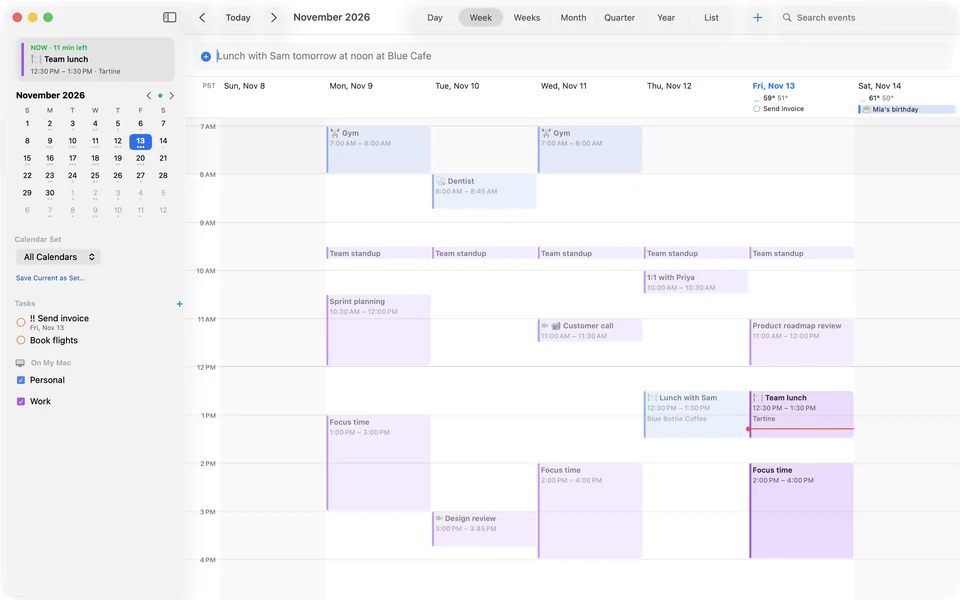
Create, move and resize by dragging
- Create: click and drag on an empty part of the day or week grid, or double-click a time.
- Move: drag an event to another time or day. In the Month view, drag it to another date.
- Resize: drag the bottom edge of an event to change how long it is.
- Block time for a task: drag a task onto the day or week view. See Tasks.
Click an event to see and change its details: time, time zone, calendar, repeat, alerts, invitees, notes and a map with travel time. Press ⌘Z to undo a change.
Make it look the way you like
Settings › Appearance has light and dark themes, three event styles (tinted, filled, outlined), three text sizes and weekend shading. Week numbers, dimmed past events and more are in Settings › Events & Tasks.
To show only some calendars, for example “Work” and “Personal”, use calendar sets. You can save a set from the sidebar and manage sets in Settings › Calendars & Lists. A set can also switch on automatically.
The menu bar icon
Almanac's icon shows today's date in the menu bar. In Settings › Appearance › Menu bar & Dock you can:
- choose the icon style: Red, Red filled, Accent colour or Monochrome;
- show a countdown to the next event, or the next event's title and time, beside the icon;
- show a video call icon in the menu bar shortly before a call, to join it with one click;
- hide the icon entirely. The global shortcut still opens the mini window.
The mini window
Click the menu bar icon to open the mini window. It has:
- quick entry for new events and tasks;
- Up Next, with a Join button for video calls;
- the month at a glance, with coloured dots for your calendars;
- a ticker of your coming days with the weather, and tabs for events and tasks.
The menu at the bottom of the mini window opens the full calendar, the daily briefing, Find a Time, calendar sets, favourite time zones and Sync Now.
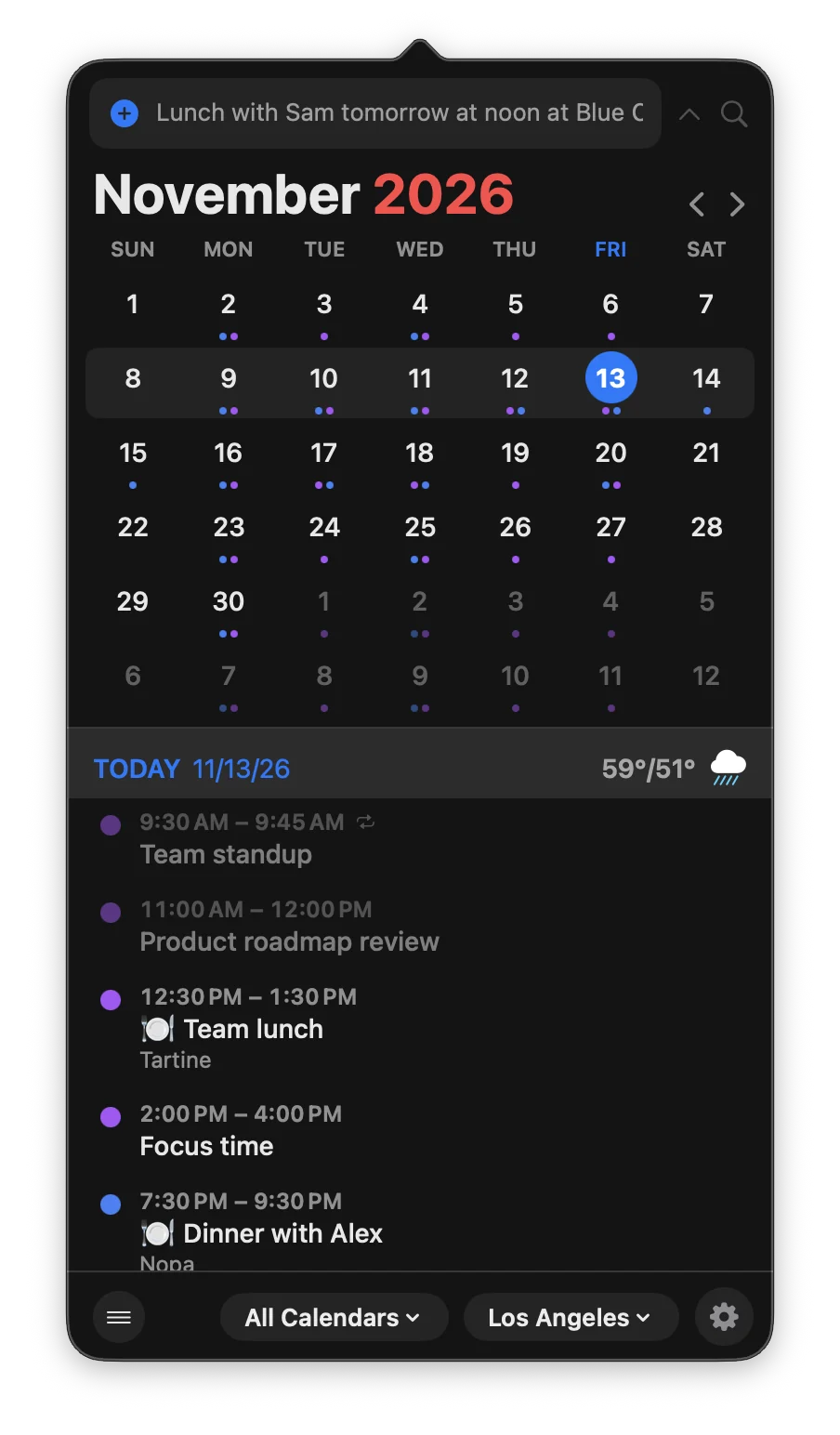
Keep it floating
Drag the mini window away from the menu bar and it becomes a floating window that stays open while you work. Close it when you're done.
Open it from anywhere
Press ⌃⌥Space in any app to open the mini window. To change the shortcut, or to have it open the quick entry panel instead, go to Settings › General. The shortcut has to include ⌃ or ⌥.
Desktop widgets
Almanac has two widgets:
- Up Next (small, medium or large): today's date, the weather and your next events.
- Month (small): this month at a glance, with busy days marked.
To add one, right-click the desktop, choose Edit Widgets… and search for Almanac.
Keep Almanac running
With Run in background turned on in Settings › General (it's on by default), Almanac keeps syncing, showing alerts and the menu bar icon after you close its windows. You can also turn on Open Almanac at login there.