 Almanac
User guide Meetings and video calls
Meetings and video calls
Almanac finds the video call link in your events and gives you a Join button. It can also add a fresh Zoom, Google Meet or Teams meeting to an event, and help you find a time that works for everyone.
Join buttons
When an event contains a link from one of these services, Almanac shows a Join button in the event, in Up Next in the mini window and in the alert notification:
Zoom, Microsoft Teams, Google Meet, Webex, FaceTime, Whereby, Jitsi, Chime, GoTo, Slack and Discord.
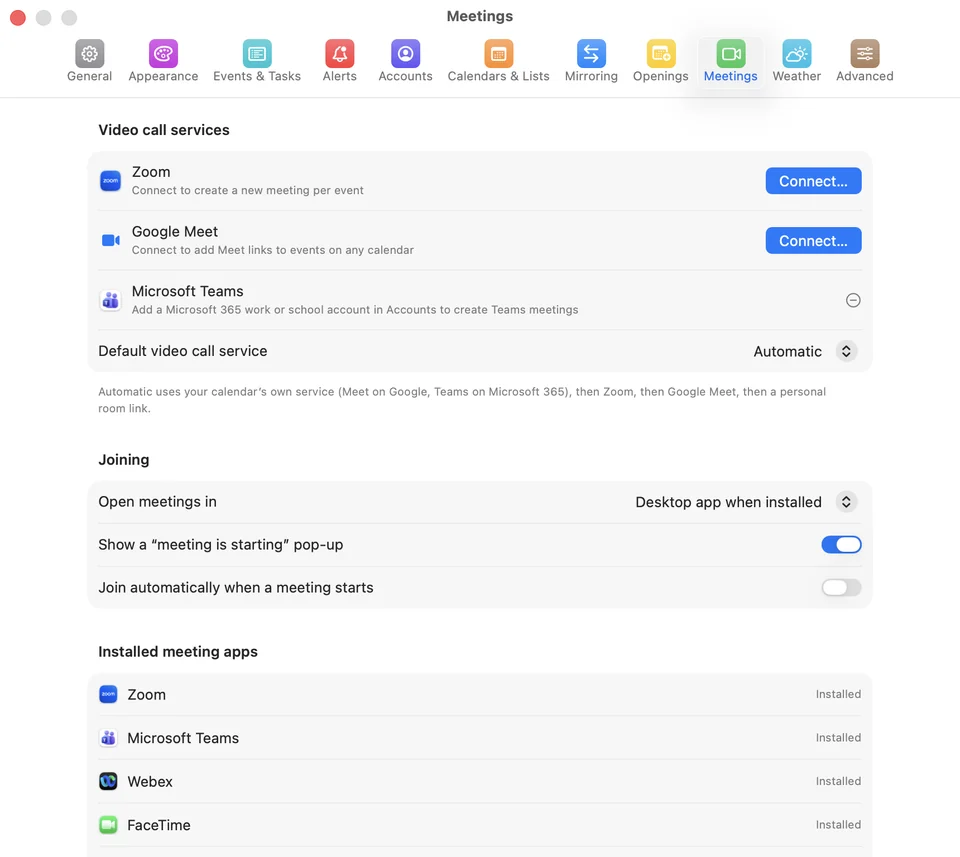
Join opens the service's desktop app when it's installed. To open calls in your browser instead, change Open meetings in in Settings › Meetings.
A few minutes before a call, Almanac can also:
- show a “meeting is starting” pop-up with a Join button;
- join automatically when the meeting starts (off by default);
- show a video call icon in the menu bar that you can click to join.
The first two are in Settings › Meetings › Joining. The menu bar icon is in Settings › Appearance.
Connect Zoom or Google Meet
Connecting a service lets Almanac create a new meeting for each event you add a call to.
- Open Settings › Meetings.
- Under Video call services, click Connect… next to Zoom or Google Meet.
- Sign in and approve access in your browser, then return to Almanac.
- Zoom: every event you add a call to gets its own new Zoom meeting at the event's time.
- Google Meet: Google calendars can already add Meet links. Connecting Google Meet adds Meet links to events on any calendar, including iCloud, CalDAV and On My Mac.
Connected services also appear in Settings › Accounts, under Meeting services. Click Disconnect in Settings › Meetings to remove one.
Microsoft Teams
Teams meetings come through your Microsoft 365 account. There's nothing separate to connect: add a Microsoft 365 work or school account in Settings › Accounts and Almanac can create Teams meetings for events on it.
Add a video call to an event
- In quick entry, click the video button. It shows which service will be used. Right-click it to pick another.
- In an event's details, click Add video call.
Default video call service in Settings › Meetings controls which service is used. Automatic uses the calendar's own service (Meet on Google, Teams on Microsoft 365), then Zoom, then Google Meet, then a personal room link.
If you don't connect a service, you can still enter a Zoom personal meeting link, a Webex personal room or a Whereby room under Personal meeting links. Almanac then adds that link when you add a call.
Responding to invitations
For invitations on Google and Microsoft calendars, you can reply Accepted, Maybe or Declined from the event's details. Invitees and their responses are listed in the event.
Find a time
Choose Schedule › Find a Time… (⌥⌘F). Set the meeting length, how far ahead to look and whether to include weekends, then click Find Times. Almanac suggests times when you're free. For invitees on Google and Microsoft accounts, it also checks their free/busy times.
From an invitation, Propose New Time opens Find a Time with everyone's availability.
Hold several times
In Find a Time, select a few options and click Hold (for example, Hold 3 Times). Almanac adds each option to your calendar as a hold, such as “Hold: Planning (1/3)”. When you know which one works, open that hold and click Confirm This Time. The event takes its proper title and the other holds are removed.
Share your availability (Openings)
Settings › Openings turns your free time into something you can send, without a scheduling service. Set the meeting length, how far ahead to look, your hours and a buffer between meetings, then:
- Copy Availability as Text to paste your open times into an email or chat. You can also use Schedule › Copy My Availability.
- Save Booking Page… to save a booking page as an HTML file that you can send or upload to any website.