 Almanac
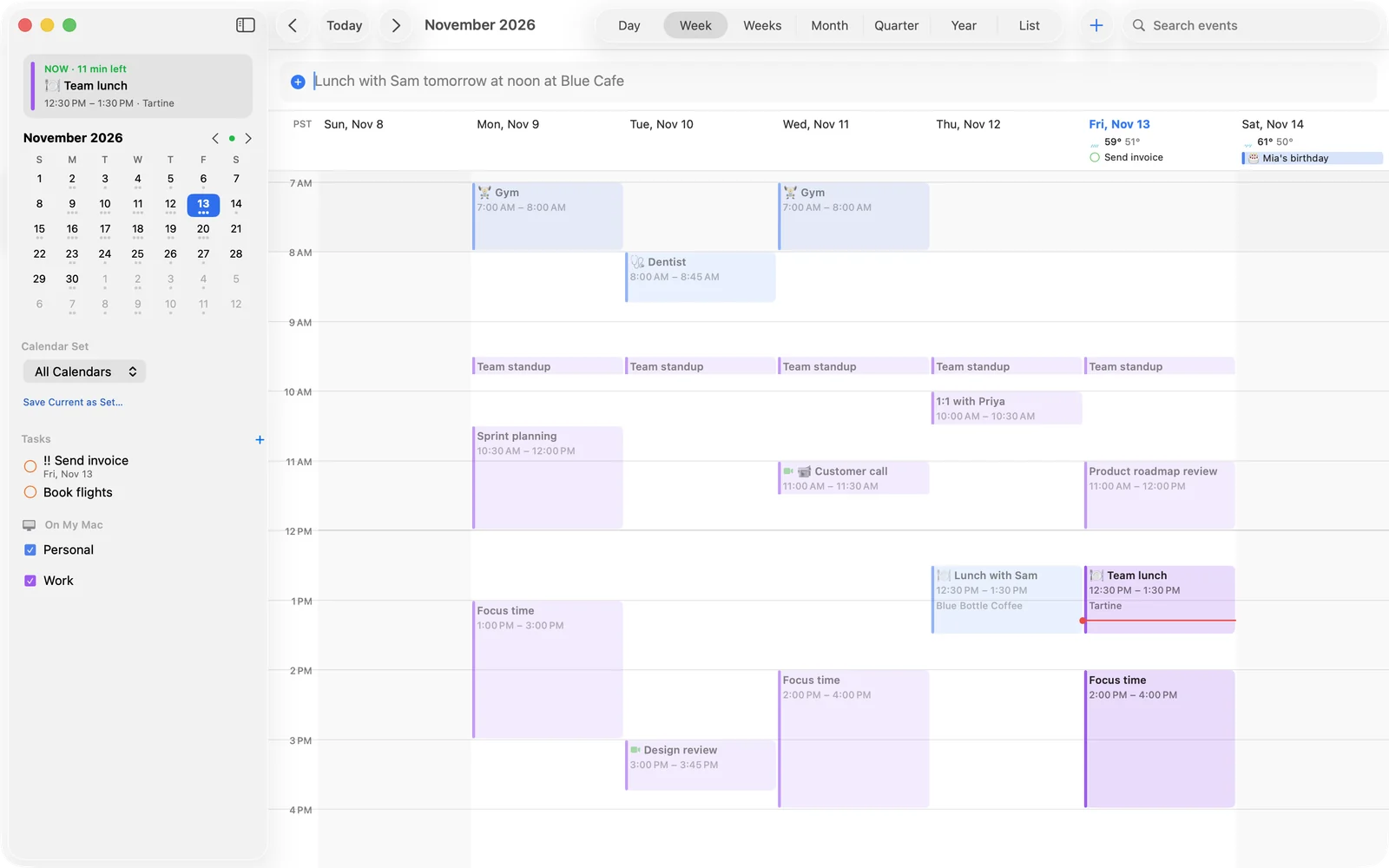
Almanac is a calendar and task manager for the Mac that lives in your menu bar. You type what you mean, such as “lunch with Sam tomorrow 12:30–1:30pm at Blue Cafe”, and it fills in the time, place, alerts and video call for you. This post covers what it does, who it’s for and how to try it.
Why we built it
Most calendars make you fill in a form. You pick a start date, an end time, a calendar and an alert, one field after another. That's fine for a quarterly planning session but slow for “coffee with Dana on Tuesday”. Your plans also tend to be spread out: a work calendar in Microsoft 365, a family calendar in iCloud, a shared one on Google, tasks in Todoist.
We wanted one calendar that sits quietly in the menu bar, understands a normal sentence and shows all of those accounts together.
Type like you talk
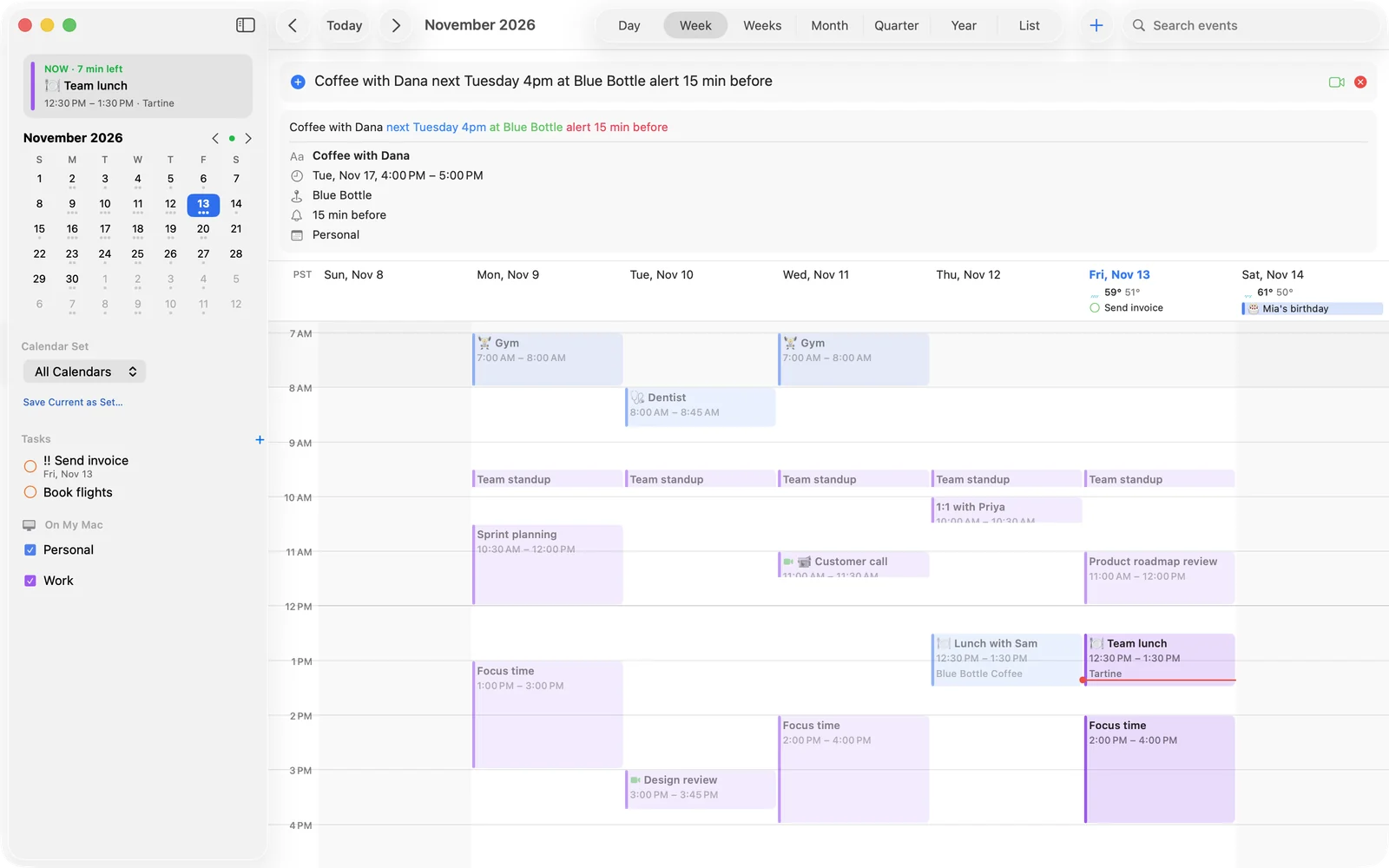
Almanac's quick entry reads your sentence as you type. A live, colour-coded preview shows what it understood (date, time, place, calendar, alerts, repeat) before you press Return. A few things it handles:
- Relative dates and spoken times:
coffee with Dana the Tuesday after next around half past four - Repeats, durations and calendars:
Standup every weekday at 9:30am for 15 min /work - Alerts inside the sentence:
Flight to Lisbon Dec 3 6:15am alert 2 hours before - Tasks with a due date and priority:
todo send invoice friday !!
You can also change things in plain English. move standup to 10am, push lunch by 30 min and cancel gym tomorrow all work. Our post on sentences Almanac understands has many more examples.
Your day, one click away
Almanac puts today's date in your menu bar. Click it to open the mini window, which has quick entry, Up Next with a Join button, the month at a glance and a ticker of your coming days with the weather. Press ⌃⌥Space (you can change this shortcut) to open it from anywhere. To keep it floating on screen, drag it off the menu bar. If you like, a countdown or the title of your next event can sit beside the icon.
When you need more room, the main window offers Day, Week, multi-week, Month, Quarter, Year and List views. Drag to create an event, move it or change its length. You can also drop a task onto your day to set aside time for it.
Every account, connected directly from your Mac
Almanac manages its own accounts. It doesn't read the macOS Calendar database. It connects directly to iCloud, Google Calendar and Google Tasks, Microsoft 365 and Outlook.com with Microsoft To Do, Fastmail, Nextcloud, any CalDAV server, Todoist and subscribed calendars. It keeps an offline copy of each on your Mac. An On My Mac calendar works from the first launch, before you add anything. There's also a Birthdays calendar from your Contacts and a built-in list of public holiday calendars.
Because the connections go straight from your Mac to each service, your calendars never pass through a server of ours. Our post on how Almanac keeps your calendar on your Mac explains how that works.
Meetings, tasks and weather
- Meetings. Almanac spots links for Zoom, Microsoft Teams, Google Meet, Webex, FaceTime, Whereby, Jitsi, Chime, GoTo, Slack and Discord. Each event with a link gets a Join button that opens the right app. If you connect Zoom or Google Meet, you can add a fresh meeting link to any event, even one on iCloud or On My Mac. Teams meetings come through your Microsoft 365 account.
- Finding a time. You can see invitees' free/busy times from Google and Microsoft and hold several options. Once you confirm one, the others are released. You can also share your availability as text or as a booking page.
- Tasks. Google Tasks, Microsoft To Do, Todoist and local lists appear right next to your events, with due dates and priorities.
- Weather and time zones. Forecasts appear in your calendar. You can add up to three extra time-zone columns and get “time to leave” alerts based on travel time.
Almanac also works with the rest of your Mac through desktop widgets, the Share menu, Services, almanac:// links, .ics import and export, and AppleScript, so you can use it from Shortcuts.
Pricing and the free trial
Almanac costs $5 a month or $50 a year per Mac. Each Mac you use it on needs its own licence.
- The first time you launch Almanac you get a free 14-day trial. You don't need an account to start it.
- When you subscribe, you pay at checkout, and you can cancel any time.
- Almanac needs macOS 14 Sonoma or later on an Apple Silicon Mac. Parsing with Apple Intelligence is optional and needs a Mac that supports it.
The licence and billing guide explains how licences, activations and renewals work.
What's next
A Windows version of Almanac is in development. We'll announce it here when it's ready. If you'd like to hear about it sooner, get in touch.
Get started
Download Almanac and try it for 14 days. Begin by typing a sentence into quick entry, then add your accounts in Settings › Accounts. The getting started guide takes you through the first few minutes. When you're ready to keep using it, buy a licence.
If anything doesn't work as you expect, please tell us. The troubleshooting guide covers the most common questions.